
Ready to pay home and business rent?
Pay RentNOW LIVE: Pay Any Bill to a Biller's BSB & Account Number
*restricted/blocked industries apply
We accept


$0 download or subscription costs. No hidden costs. Pay one processing fee only.
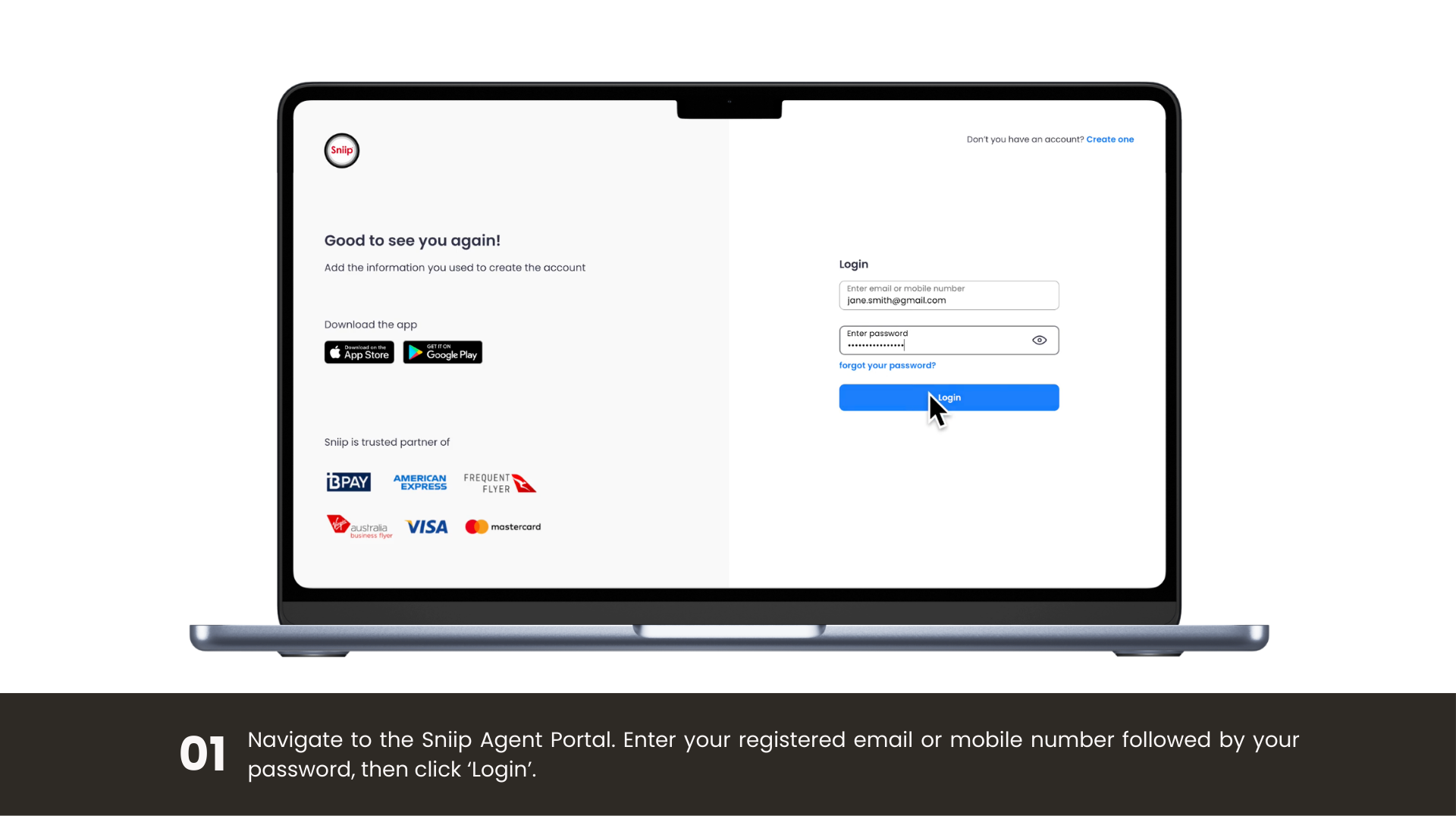
Personal Payment Methods and Fees

Business Payment Methods and Fees
Rent to pay? You can pay it with Sniip!
Paying rent with the payment method of your choice has never been easier! To get started, email your lease agreement and/or receipt to rent@sniip.com.
Please confirm your lease includes the following:
- Your rental agency’s ABN
- The BSB and Account Number for the biller
- Payment reference number (i.e 173TerraceSmith)
- Property address for the rental
- Rent amount (you can edit this later)

Maximise rewards, pay any rent with Sniip
You can pay your home rent, PLUS your business rent with Sniip and start earning full reward points with your points earning card!
Plus, most business rent already comes with an invoice, making the process seamless.
Simply tap the ‘+’ to upload a copy of your invoice for payment. Pay now, or create a recurring payment.
Upload your rent here 👇
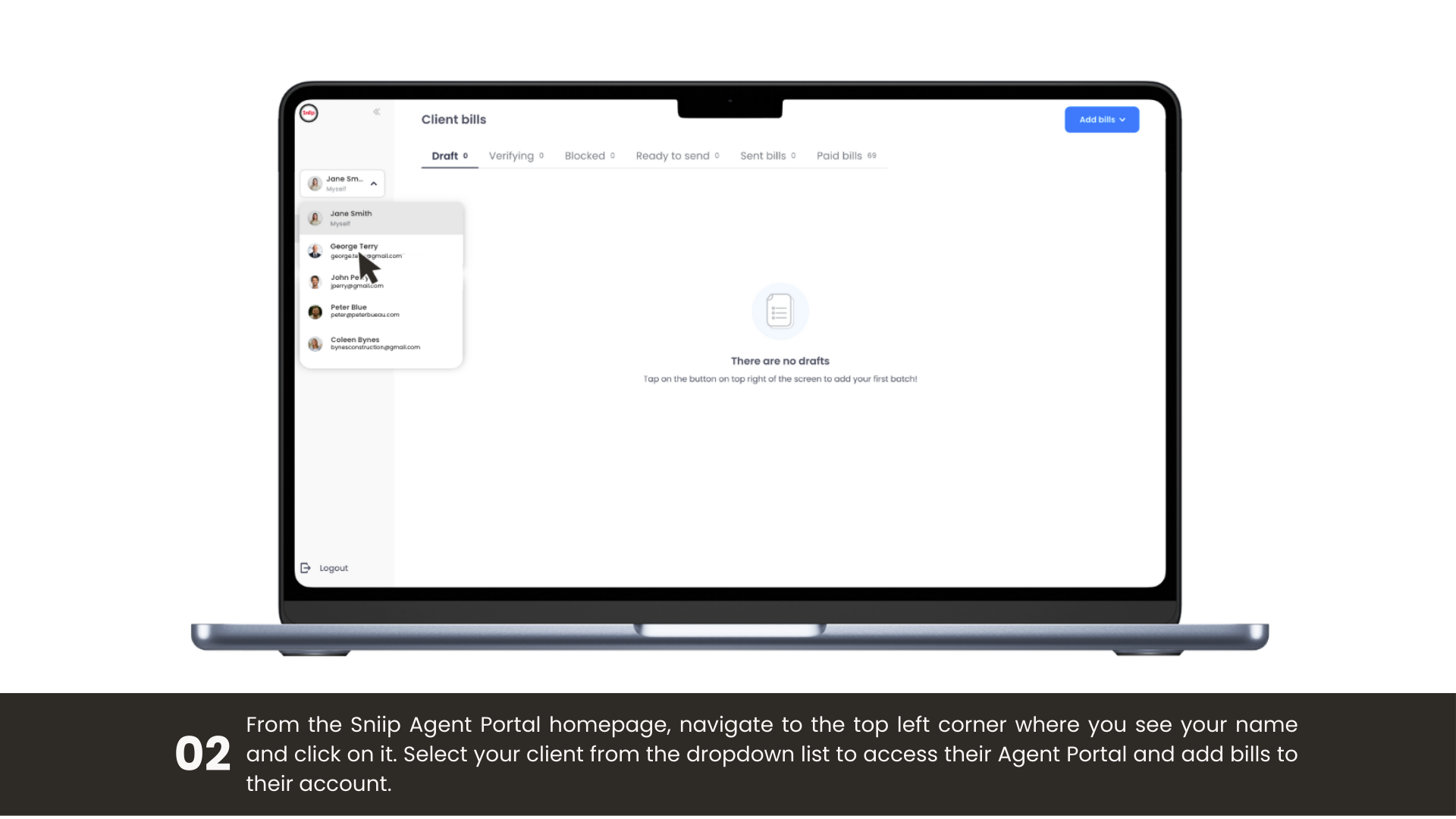

Rent Payments
Upload/share a receipt of your previous rent payment to Sniip. This is a great option as it contains the key information we need:
- ABN (this is required, we cannot facilitate private rentals)
- Total bill amount
- BSB & Account Number Details of who you’re paying
Alternatively, please email a copy of your lease/rental agreement containing the below details to rent@sniip.com.
- ABN (this is required, we cannot facilitate private rentals)
- Lessor and lessee details
- Payable amount
- Reference Number (so your biller can locate your payments)
- BSB + Account details
We’ll create you a rental bill and add it to your ‘To pay’ tab within the ‘Bills’ section of the Sniip app. You’ll get a handy push notification and an email when it arrives.
Please note that this process can take up to 1 business day. If there’s an urgency to your request, please call (07) 3268 7710.
How to upload a valid rent receipt

To make life easier, you are able to pay rent, utilities, and other ongoing payments by creating Recurring Payments in the Sniip app!
How to create a recurring paymentSTEP 1
NOTE: If your Sniip account is already verified, please proceed to step 2.
To pay bills to a biller's BSB and Account Number with Sniip, please complete User Verification in the app.
In doing so, you'll get the green tick of  Verification on your account and unlock your access to pay bills with a BSB & Account Number using Sniip.
Why is User Verification Required?
User Verification is a crucial step in the process of making bill payments to a BSB & Account Number is required to be undertaken by all users who wish to access functionality. It serves several important purposes:
1. Security & Fraud Prevention: Verifying user information adds an extra layer of security and protection for your account and all parties involved in the payment process.
2. Regulatory Compliance: Sniip is a regulated Bill Payment Service Provider (BSPS). We are committed to maintaining compliance with all relevant industry standards and regulations. As part of these requirements, we're required to request user verification for certain types of transactions, including payments to a BSB & Account Number.
You can learn more about our User Verification process, here.
What is account verification?
User Verification involves uploading a form of photo identification (Driver Licence/Passport) securely to the Sniip app.
To ensure compliance within these regulations, User Verification is required is assist in the prevention of fraud and money laundering - this includes when making bills payments to BSB & Account Number/Bank Transfer/SME payments.
You can learn more about our account User Verification process, here.
Will my details be secure?
We ensure all data entered into Sniip is managed with the highest level of security. At Sniip, we’re proud to have achieved full Tier 1, Payment Card Industry Data Security Standard (PCI DSS) compliance — the same standard that Australian banks comply with.
Sniip is an authorised Payment Institution Member (PIM) of BPAY and adheres to strict compliance standards to offer our service.
To learn more about how our Compliance Team manages security at Sniip, contact the Sniip Support Squad or call (07) 3268 7710.
What you will see when...

Your bill has been approved, and your verification documents are being reviewed.

Verifying your account.
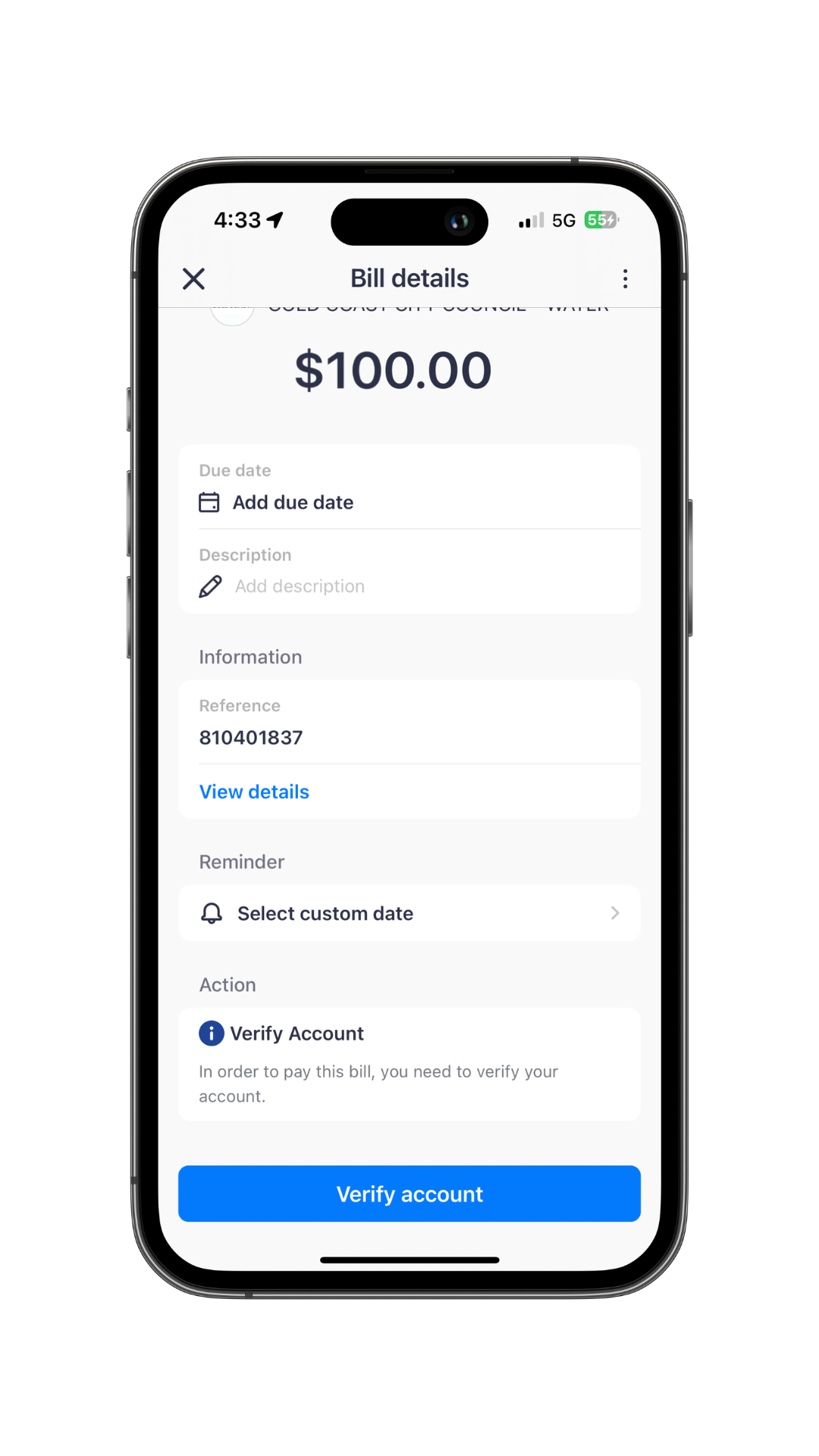
Your bill has been approved, but you haven't verified your account.
STEP 2
Add your bill to the Sniip app in one of three ways:
1. Import from Photo (in the Sniip app)
Take a photo/ Import from camera roll.
2. Share PDF bill from email (via your chosen email app)
Open the email containing your bill/invoice, tap the 'Share' button and select Sniip.
3. Have bills automatically import from your email
The next time you have a bill land in your inbox, it'll automatically upload into the Sniip app.
Import from camera roll / take a photo
Import from camera roll/take a photo
Step 1
Open the Sniip app and tap the blue + icon in the top right corner.
Step 2
Select 'Import from photo'
Step 3
Choose to 'Take a photo' of the bill or 'Select from photos' to import from your camera roll
Step 4
When importing from camera roll, tap on the image of your bill and select ‘Import’
Step 5
You will see 'We're processing your bill', select, 'Dismiss' and your bill will automatically begin processing. To locate your processing bill, select, 'Bills', then the ‘Review’ tab.
You’ll be notified when the bill details are digitised and you are able to pay!
NOTE: If your bill 'Failed to process', please ensure it contains 1) an ABN, 2) BSB & Account details 3) The bill amount. Alternatively, please email a copy of your bill to customercare@sniip.com for our team to assist you.
Share bill PDF from email
Share bill PDF from your email
Step 1
Open your email and tap on the bill attachment.
Step 2
Tap the share icon (in the bottom left of the screen) and select, 'Sniip'. If you don't see the app as an option, scroll across to the ‘More’ button.
Step 3
Select the Sniip app and tap ‘Import Bill’.
Step 4
You bill will automatically begin processing in the ‘Review’ tab in the bills section.
You’ll be notified when the bill details are digitised and you are able to pay!
NOTE: If your bill 'Failed to process', please ensure it contains 1) an ABN, 2) BSB & Account details 3) The bill amount. Alternatively, please email a copy of your bill to customercare@sniip.com for our team to assist you.
Automatically import from email
Auto import from email
Step 1
Open the Sniip app.
Step 2
Tap the menu in the top left corner.
Step 3
Select ‘Import from email’.
Step 4
From here, choose your email provider and enter the email address you’d like your bills imported from.
Step 5
Tap ‘Continue’ and follow the prompts to connect your email address.
All done! The next time you receive a bill attachment in your emails, it’ll be automatically uploaded to the Sniip app, ready for you to pay or schedule. You’ll receive a notification when a new bill arrives.
NOTE: If your bill 'Failed to process', please ensure it contains 1) an ABN, 2) BSB & Account details 3) The bill amount. Alternatively, please email a copy of your bill to customercare@sniip.com for our team to assist you.
STEP 3
If the BSB & Account Number combination you're looking pay has approved already, you’re ready to pay!
As this is a brand new feature for Sniip (and much like when we launched BPAY in 2019), we're required to review every biller that’s added to the app.
If you're the first person to pay the BSB & Account Number combination, your bill will be reviewed by our team within two business days.
If there’s any urgency to your bill, please email customercare@sniip.com or phone (07) 3268 7710 and we’ll ensure your request is prioritised.

READY TO PAY
If your bill has been approved, you’re all good to pay your bill!

UNDER REVIEW
If your bill was required to be reviewed and has been approved, you’ll receive a push-notification and be ready to pay. If your bill was required to be reviewed and has been declined, you will not be able to pay this bill.

AUTOMATICALLY DECLINED
If your bill falls within a blocked industry, it will be automatically declined.
STEP 4
Once your bill has been automatically/manually approved, you're all set to pay the bill!
You can find your bill in the ‘Review’ or ‘To Pay’ tabs in the ‘Bills’ section, which is located at the bottom of the Sniip dashboard in the app.
Step 1
Find your bill in the ‘To Pay’ tab within the ‘Bills’ section located at the bottom of the dashboard in the Sniip app.
Step 2
Choose ‘Pay’ it now to or ‘Schedule’ your bill for a later date.
Step 3
To pay now, tap ‘Pay’, and choose the payment method you wish to pay the bill.
Please note: Google Pay, Diner's Club and prepaid cards are not currently enabled with non-BPAY payments.
Step 4
Confirm the payment date and bill about, and tap ‘Next’.
Step 5
Enter your PIN to complete the payment. Done!

PAYEE: What the recipient receives
━━━━━━━━━━━━━━━━━━
As your payment is processed in a two-legged transaction, your funds will land in the biller’s accounts with the reference that you entered when adding the bill to Sniip. This is the same as adding a reference number when previously paying your biller.
Your bill will include your unique reference, this will help the biller identify your payment.

PAYER: What receipt you receive
━━━━━━━━━━━━━━━━━━
You will get a transaction receipt after a successful payment. This is stored in the ‘Receipt’ section of the app. The receipt contains the following:
- Payment amount
- Processing fee
- GST (if applicable)
- Payment date + more


Use any* payment method
VISA, Mastercard, Amex, Debit
As with BPAY payments, even if your biller doesn't accept your payment method directly, you can use it to pay BSB & Account Number bills with Sniip! Plus, you can use Apple Pay too.
*Google Pay/Diner's Club and prepaid cards are not enabled with non-BPAY payments

Pay Bills using BSB and Account Number
Paying non-BPAY Bills is now unlocked
You have the flexibility to pay any* bill featuring a BSB and Account Number, all while choosing the payment method that suits you best.
*As usual, blocked/restricted industries apply as required by our banking partners.

Earn full points
Always earn full credit card points on payments
With Sniip, every bill you pay becomes an opportunity to maximise your credit card points. Enjoy the benefit of earning full credit card rewards on all your payments.


Please note: Pay from Bank Account requires one additional day processing time.

Bank Accounts:
Paying from a BSB & Account Number
How to pay using a BSB and Account number.

Adding and verifying your BSB & Account Number

Example of desktop application not displaying full description, including the SN.

Example of mobile application displaying full description, including the SN.
What is the SN Code?
When adding your bank account, we will deposit a small amount into your nominated account to verify the information you have provided.
After adding your bank account details, check your bank account to find a deposit from Sniip, containing "SN". This SN code must be entered into the Sniip app in order to verify your bank details.
Issue locating the SN
If you're unable to find 'SN' and a series of numbers, it is likely being cut-off by the desktop application. Please open your banking app where you were see the 'SN' displayed in the statement reference/description.
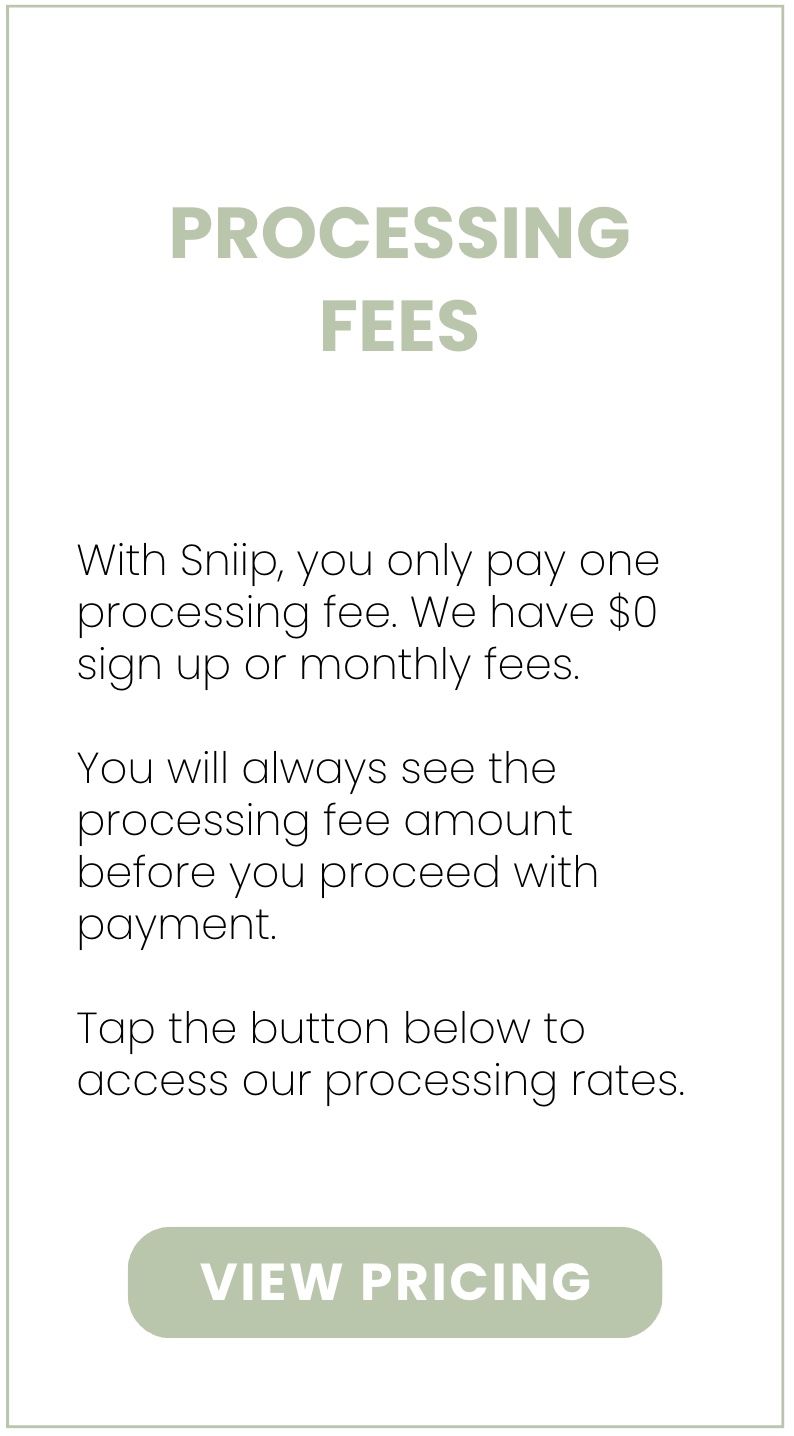
Zero processing fees
Use the Sniip app without any processing fees by connecting your Bank Account. Get set-up now with two simple steps:
1. Verify your identity
2. Add your BSB & Account Number

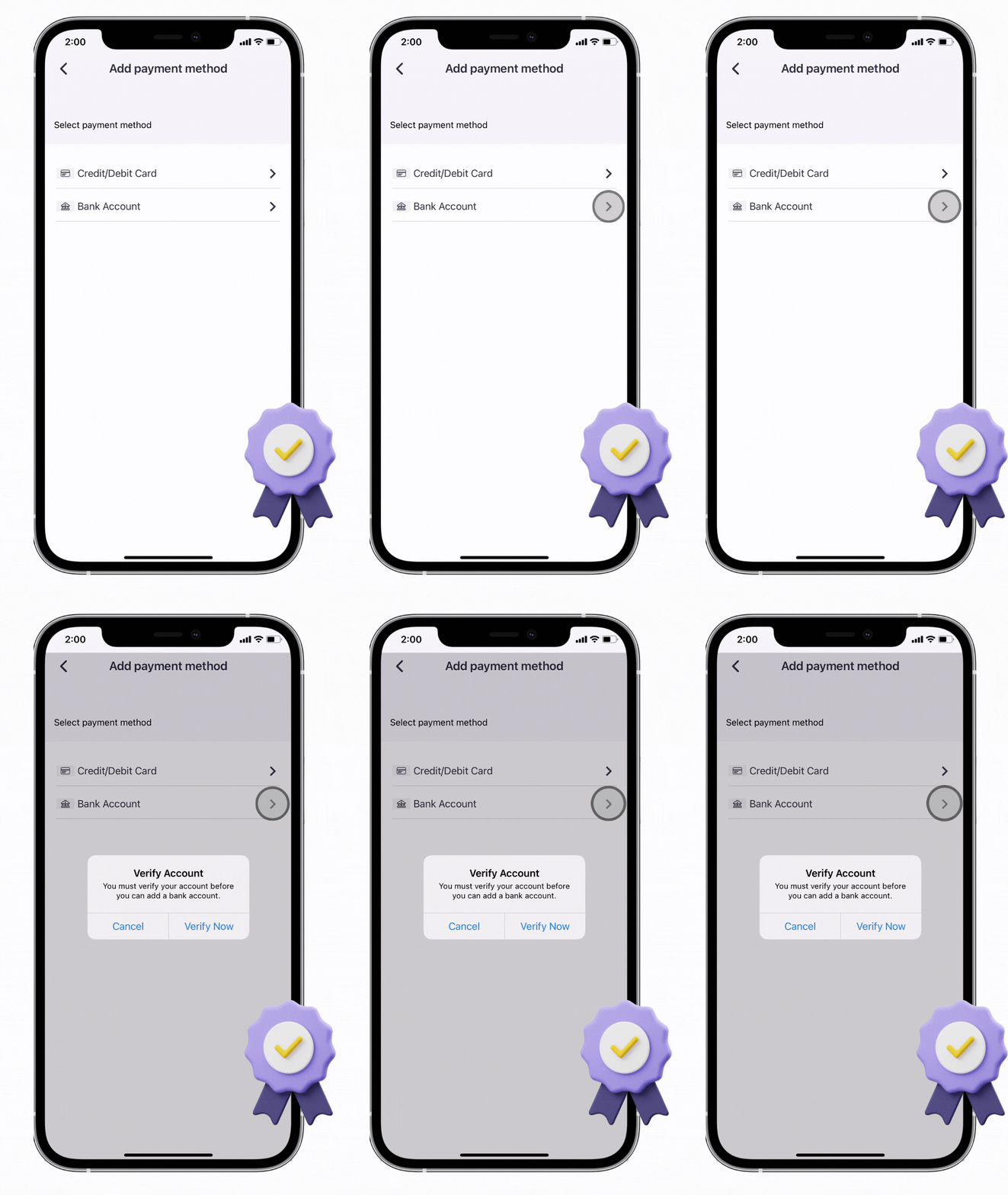
Verification for Bank Accounts
Your payment security is our top priority! Therefore, before adding your BSB & Account Number, you need to verify your identity in the Sniip app.
User verification is a quick and painless process and is an important part of our card security and fraud prevention measures. We conduct this process to protect your account, ensuring you can pay with comfort and certainty.
Please note, in order to successfully verify your identity, your legal name must match the name on your Driver License/Passport. Check-out further information on how to update your legal first name.
Find out moreWhat is a BSB & Account Number?
BSB
A BSB number stands for Bank State Branch, and is a six digit number that identifies the bank, state and branch of your bank account.
Bank Identification: The first two digits of the BSB number identify the specific bank or financial institution. Each bank in Australia is assigned a unique two-digit code. For example, Westpac might have the code "03," while Commonwealth Bank could have "06."
State Location: The following two digits of the BSB number indicate the state in which the bank branch is located. This is crucial because many banks have branches in multiple states. For instance, the code "12" might refer to a branch in New South Wales, while "24" could point to a branch in Queensland.
Branch Identification: The last two digits of the BSB number distinguish individual branches within the same bank and state. This ensures that the funds are directed to the correct branch, even if multiple branches exist in the same state.
Account number
An account number is a unique number used to identify your bank account.
Uniqueness: Each account within a branch of a bank has a distinct account number. This number ensures that the money is directed to the correct individual or business account.
Varied Length: Account numbers can vary in length and format between different banks. They may consist of digits only or a combination of letters and digits. The length and format of account numbers are determined by the bank's internal systems.
Security: Account numbers are sensitive and should be kept confidential to prevent unauthorised access to the associated bank account.
When you provide both the BSB and account number for a recipient, you enable the banking system to accurately direct funds to the intended account. It's essential to double-check these numbers when making transfers to avoid any errors that could lead to misdirected funds.
Bank BSB Lookup
NAB
NAB’s bank branch identifying numbers can be found with the bank BSB search here.
Westpac
Westpac’s bank branch identifying numbers can be found with the bank BSB search here.
Commbank
Commbank’s branch identifying numbers can be found with the bank BSB search here.
ANZ
ANZ’s bank branch identifying numbers can be found with the bank BSB search here.
ING
ING’s bank BSB number is BSB: 923-100. Learn more about ING bank here.
Bank of Queensland
BOQ has two BSB numbers:
- 124-899: for accounts managed in the myBOQ App use
- 124-001: for all other accounts
Learn more about Bank of Queensland BSB numbers here.
Macquarie Bank
Learn how to locate your Macquarie Bank BSB number here.
Bendigo Bank
Bendigo Bank’s BSB number is: 633-000. Learn more about Bendigo Bank here.
Suncorp Bank
Suncorp Bank’s BSB number is: 484-799. Learn more about Suncorp Bank here.
Bankwest
Learn how to locate your Bankwest BSB number here.
*Disclaimer: This information is provided as a guide only. Please refer to your bank for the most up to date and accurate information.
Paying from a BSB & Account Number
General FAQ
Verification FAQs
How long will it take to process my payment from my bank account?
Short answer: Two to three days.
When you make a bank account payment through Sniip, Sniip will move it to the processing stage within two business days. Accordingly, this component of the transaction utilises the BPAY scheme and is subject to the BPAY terms.
The cut-off times for Sniip to receive your payment for processing within two business days is as follows:
- 6pm AEDT/5pm AEST
Please allow sufficient time for your payment to be processed. Generally, funds take roughly 24 hours to finalise and be deposited into the billers account. Therefore, we suggest always paying your bills three days in advance.
Additionally, you can find a time stamped receipt under the ‘History’ in the Sniip app. Here, you'll see the exact time your payment was made to your biller via BPAY. To clarify, the biller must recognise the BPAY payment as the date that the bill was paid.
How do I update the default payment method for all my recurring payments?
Great question! You can update the payment method for any scheduled or recurring payment by going into the ‘Payments’ tab in the Sniip app.
Tap on the payment you want to update, then tap ‘Edit Payment’ and ‘Edit Recurring Payment’ if you're amending the payment method on a recurring payment.
Tap the ‘Next’ button. Swipe through your Payment Methods to find the correct one and tap ‘Next’. Review the details for this payment, select 'Confirm' and then enter your PIN/Face ID.
Please note: You need to repeat this process for each of the scheduled bills you want to update.
What does ‘failed to create bank account agreement' mean?
You will see this error message if incorrect details have been entered. We'd recommend checking to ensure the details you provided are correct.
If you're still experiencing this issue, please contact our Sniip Support Squad on (07) 3268 7710 or email customercare@sniip.com.
How do I verify my bank account?
When you add your bank account, Sniip will deposit a small amount to verify the information you provided.
Once you've added your account details, check your bank account and look for a deposit called SN. Copy the five characters after ‘SN’.
Go back to the Sniip app, enter the five numbers and enter 'Verify now'. If successful, you should see the ‘Bank account verified’ screen!
Why do I need to verify my Sniip account?
When adding a bank account to your Sniip wallet, we will need to verify your identity.
Sniip is a regulated Bill Payment Service provider and we are a member of BPAY. This requires us to undertake significant compliance assessments in order to provide our service.
As part of this commitment, Sniip must identify our customers and verify that their information is correct for the purpose of addressing Anti Money-Laundering/Counter-Terrorism Funding risk, fraud and misappropriation risk, as well as requirements imposed by our banking and regulatory partners.
How long does it take to verify my Sniip account?
We usually review your verification submission within one (1) business day.
You will be notified when your verification has been approved.
To ensure your account gets approved as soon as possible, please ensure you upload a copy of your current Driver Licence or passport that clearly shows your full name, date of birth and photograph.
Why is my account not verified yet?
Our team is working hard to verify each Sniip account as quickly as possible.
Customer protection, card security and fraud prevention are the highest priorities at Sniip.
In the meantime, please check if you have received an email from our customer service team requesting any further information or clarification.
We will notify you when we verify your account. For any urgent payments, please contact us on (07) 3268 7710 and we will assist in any way possible.
More questions?
Check out our FAQ Page